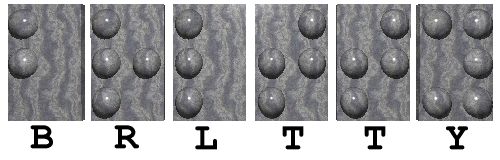
BRLTTY is Copyright ©
1995-2023 by The BRLTTY Developers.
It comes with NO WARRANTY.
This is free software, placed under the
GNU Lesser General Public License, as
published by the
Free Software Foundation.
BRLTTY and BrlAPI can be downloaded in various archive formats. These formats can be identified by their file extensions.
Source archives, which contain everything, include:
Binary formats which contain a full build include:
brltty-win-
then it's for Windows.
If the file name is brlttynn
(or, in some cases, brlttnnn)
then it's for DOS.
There are two variants for each Windows installer (.exe) and Windows binary archive (.zip). This is necessary because there are two ways to access USB devices on Windows.
-libusb.
-libusb-1.0.
Binary builds for some distributions are split into several packages in order to facilitate minimizing the dependency on external components. Binary formats for these partial-build packages include:
Partial build packages include:
The current production version of BRLTTY is 6.6 (July 22, 2023). It can be downloaded in the following formats:
The current production version of BrlAPI is 0.8.5 (July 22, 2023). It can be downloaded in the following formats:
| Name | Category | Size | Date |
|---|---|---|---|
brlapi-0.8.5-1.x86_64.rpm |
Linux | 71K | 2023-07-22 |
brlapi-devel-0.8.5-1.x86_64.rpm |
Linux | 242K | 2023-07-22 |
brlapi-utils-0.8.5-1.x86_64.rpm |
Linux | 116K | 2023-07-22 |
java-brlapi-0.8.5-1.x86_64.rpm |
Linux | 110K | 2023-07-22 |
ocaml-brlapi-0.8.5-1.x86_64.rpm |
Linux | 49K | 2023-07-22 |
python-brlapi-0.8.5-1.x86_64.rpm |
Linux | 101K | 2023-07-22 |
tcl-brlapi-0.8.5-1.x86_64.rpm |
Linux | 27K | 2023-07-22 |
After downloading the package, install it as follows:
.tar.*tar -xjf brltty-release.tar.bz2
tar -xzf brltty-release.tar.gz
tar -xJf brltty-release.tar.xz
.arch.rpm
rpm -Uvh brltty-release-version.arch.rpm
.src.rpm
      rpm -ivh brltty-release-version.src.rpm
      rpm -bi brltty-release-version
After installing the package,
be sure to read its README file.
If you try BRLTTY, do leave us a note! We would like to know who the users of BRLTTY are.
This site offers binary packages for the later releases of BRLTTY. See the Current Release and the Old Releases subsections of this page.
Debian packages for BRLTTY can be found at http://deb.debian.org/debian/pool/main/b/brltty/.
BRLTTY is developed within a source repository on GitHub. You can access the repository yourself if you have the git client. To download and/or learn how to use the git client, go to [http://git-scm.com/].
If your distribution provides it (most do) then you should get it from them:
dnf install gitapt install gitThe repository is at [https://github.com/brltty/brltty]. Here are a few simple things that you can do:
git clone https://github.com/brltty/brltty.gitIf it doesn't work then try one of these alternate commands:
git clone http://github.com/brltty/brltty.gitgit clone git://github.com/brltty/brltty.gitbrltty in your current working directory.
git clone https://github.com/brltty/brltty.git path-to-locationNote that this directory needn't already exist. The best is for it either to be empty or for it to not already exist.
git pull origin
git tag
git checkout <release-name>For example:
git checkout BRLTTY-6.3
git checkout master
The following instructions assume that you've changed your current working directory to the top level of BRLTTY's source tree.
The following basic steps, in order, prepare, configure, build, and install BRLTTY. Each of them will be described in detail below.
./autogenTools/reqpkgs -i./configure -qmake -smake -s install
The autogen script needs at least the following:
BRLTTY_AUTOCONF.
export BRLTTY_AUTOCONF=path-to-autoconf
$PATH)
and must be named tclsh.
If it's in a different place on your system
then adjust the path in the first line of the gendeps script as needed.
The configure script generates an enormous amount of output.
We recommend, therefore, that you use its --quiet (-q) option so that you won't miss warnings and errors.
If you need to see any of the details then look in config.log.
The make command generates an enormous amount of output.
We recommend, therefore, that you use its --silent (-s) option so that you won't miss warnings and errors.
You can get the same effect by setting this environment variable:
export MAKEFLAGS=s
If you're starting from a checked out branch from the development repository, you must first generate the initial set of derived files. To do this, run:
./autogen
3.8, this script was named autogen.sh.
This optional step installs all of the additional packages (that we know about) that are required for a successful build of BRLTTY.
It needs to be run as root (or via sudo) on most platforms.
The command's name - reqpkgs means required packages
,
and its -i option means install the missing packages
.
Alternatively, you can:
Use the -l option to list the missing packages.
Not specify any option to just see how many packages are missing.
This step is only supported as of release 3.1.
For earlier releases, carefully edit the top-level Makefile.
A number of platform-specific wrappers to the configure script are provided.
As of the time this is being written, they are:
Each of the wrappers passes the best set of options to the configure script for its corresponding platform.
If one is provided for your platform, therefore, we recommend that you use it to configure BRLTTY.
All of the options given to any of the wrappers are passed through, unmodified, to the configure script so you can still do additional customization.
The following components are built:
The brltty binary.
The braille, speech, and screen drivers.
The brltty-* binaries.
The xbrlapi binary.
The BrlAPI client library and configured bindings.
The following components are installed:
The brltty binary, configuration file, man page, and headers.
The braille, speech, and screen drivers.
The text, contraction, and attributes tables.
The braille device (input) and keyboard key tables.
The brltty-* commands.
The message catalogs.
The package configuration file.
The xbrlapi binary and man page.
The X11 and gdm startup scripts.
The BrlAPI client library, configured bindings, headers, man pages, and access key.
These additional make targets are provided:
| install-appstream | The AppStream metadata. |
| install-messages | The message catalogs. |
| install-polkit | The Polkit rules. |
| install-systemd | The Systemd units. |
| install-udev | The Udev rules. |
| install-extras | All of the above. |